
FQB Transfer User Interface Guide
This page explains the FQB Transfer user interface and what each button does. If you are new to FTP clients on macOS, this guide will help you understand how to navigate, transfer files, and manage connections efficiently.
Documentation Menu
1. Top Application Menu

The top menu provides access to global application actions and information. These buttons affect the entire app, not just the current connection.
- 1) Settings – Opens application preferences such as UI behavior and defaults.
- 2) Docs – Opens the documentation section.
- 3) About – Displays application version and product information.
- 4) Exit App – Closes FQB Transfer safely.
2. Local Panel Toolbar (Left Side)

The local panel shows files and folders on your Mac. Toolbar buttons here control navigation and actions on your local filesystem.
- Back – Go to the previous local directory.
- Forward – Go forward in navigation history.
- Up – Move one directory level up.
- New Folder – Create a new folder locally.
- Refresh – Reload the current local directory.
3. Remote Panel Toolbar (Right Side)
The remote panel displays files on the connected server (FTP, SFTP, S3, etc.). These controls operate on the remote location.
- Back – Navigate to the previous remote directory.
- Forward – Move forward in remote navigation history.
- Up – Go up one directory on the server.
- New Folder – Create a new directory on the remote server.
- Refresh – Reload the remote file list.
4. File Panels (Left & Right)
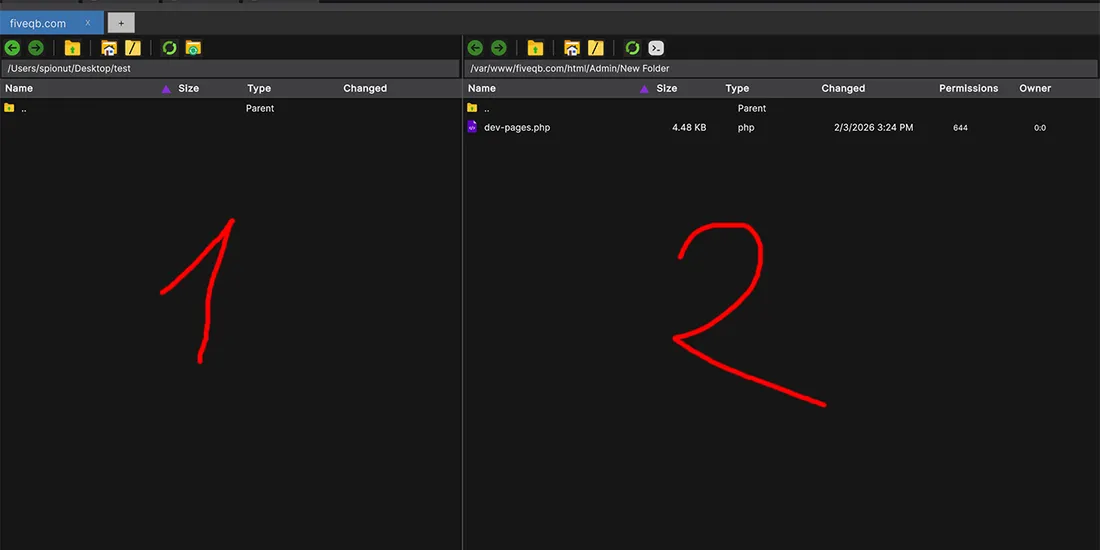
FQB Transfer uses a dual-pane layout. The left panel is local, the right panel is remote.
- Double-click folder – Open the folder.
- Double-click file – Download or open (depending on configuration).
- Drag & Drop – Transfer files between local and remote panels.
- Right-click – Open context menu (rename, delete, permissions, etc.).
This workflow is intentionally similar to WinSCP, making migration easy.
5. Tabs & Active Connections

Each connection opens in its own tab, allowing you to work with multiple servers at once.
- 1) Is the active Tab – Open another connection without closing the current one.
- 2) New Tab – Open another connection without closing the current one.
- 3) Close Tab – Disconnect and close the selected connection.
- Switch Tabs – Click a tab to change the active connection.
Tabs are useful when working with staging and production servers side by side.
6. Status Bar & Transfer State

The bottom status bar shows the current state of the application.
- Connection Status – Displays whether you are connected or idle.
- Transfer Progress – Shows active uploads or downloads.
- Ready State – Indicates the app is waiting for your next action.
Key Takeaways
- FQB Transfer uses a clear dual-panel layout: local on the left, remote on the right.
- Each toolbar controls only its own side (local or remote).
- Drag & drop and double-click actions cover most daily workflows.
- Tabs make it easy to manage multiple FTP or SFTP connections.