
This guide explains how to synchronize files and folders between your Mac and a remote server using FQB Transfer. Folder sync is useful when you want local and remote directories to stay aligned automatically, without manually uploading or downloading files each time.
Sync Help Menu
What Is Folder Synchronisation?
Folder synchronisation keeps a local folder and a remote folder in sync. When a file changes locally, it can be uploaded automatically. When a file changes on the server, it can be downloaded back.
This is especially useful for:
- Web development (local → server)
- Staging and production mirroring
- Continuous file updates without manual transfers
Open the Folder Sync Panel

To manage folder synchronisation, open the Folder Syncs window. This panel lists all active and inactive sync mappings.
Each row represents a mapping between: Local path → Remote path.
Add a New Folder Sync
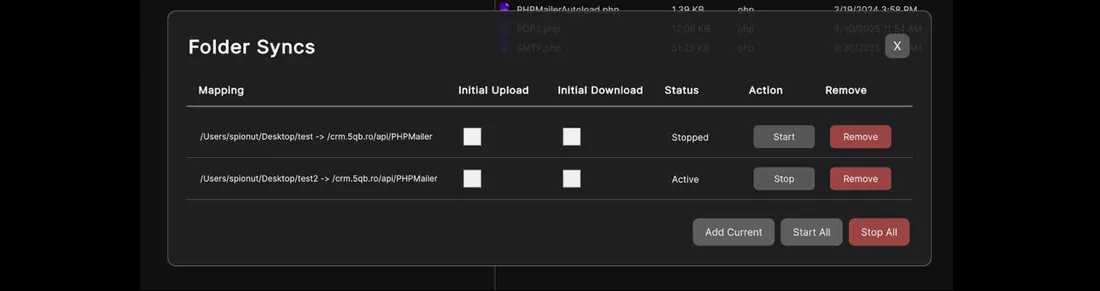
To create a new sync:
- Navigate to the desired local and remote folders
- Click Add Current
- Choose the initial sync behavior
- Press Start
Once added, the sync appears in the list with its current status (Active or Stopped).
Initial Sync Modes Explained
When starting a sync, you can choose how the initial synchronisation behaves:
- Initial Local Sync – Upload local files to the server first.
- Initial Remote Sync – Download server files to your Mac first.
- Both Initial Sync – Compare both sides and sync differences.
- No Initial Sync – Start monitoring changes without copying files.
Choosing the correct mode prevents accidental overwrites.
Start & Stop Sync from the Dock Bar
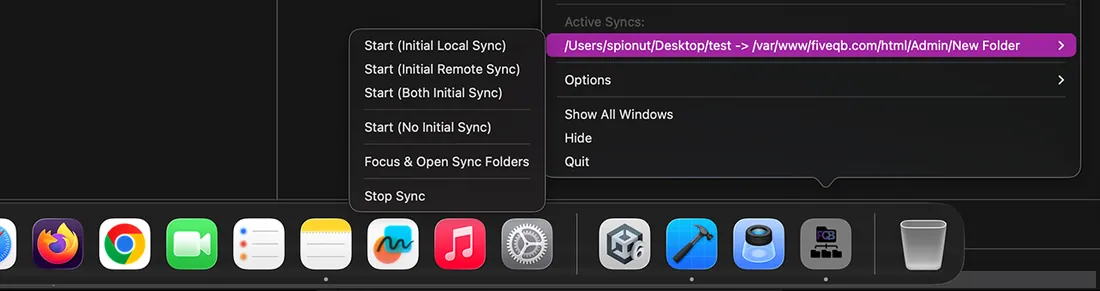
Active synchronisations can be controlled directly from the macOS menu bar:
- Start sync for a specific folder mapping
- Stop sync instantly
- Focus and open synced folders
- Monitor current sync status
This allows background syncing without keeping the main window open.
Best Practices & Safety Tips
- Use SFTP or FTPS instead of plain FTP when syncing important data.
- Test sync on a staging folder before production.
- Avoid syncing system or root directories.
- Use clear folder mappings to prevent confusion.
Key Takeaways
- Folder sync automates file transfers between local and remote folders.
- Multiple syncs can run in parallel.
- Initial sync mode selection is critical for data safety.
- Menu bar controls allow background operation.