
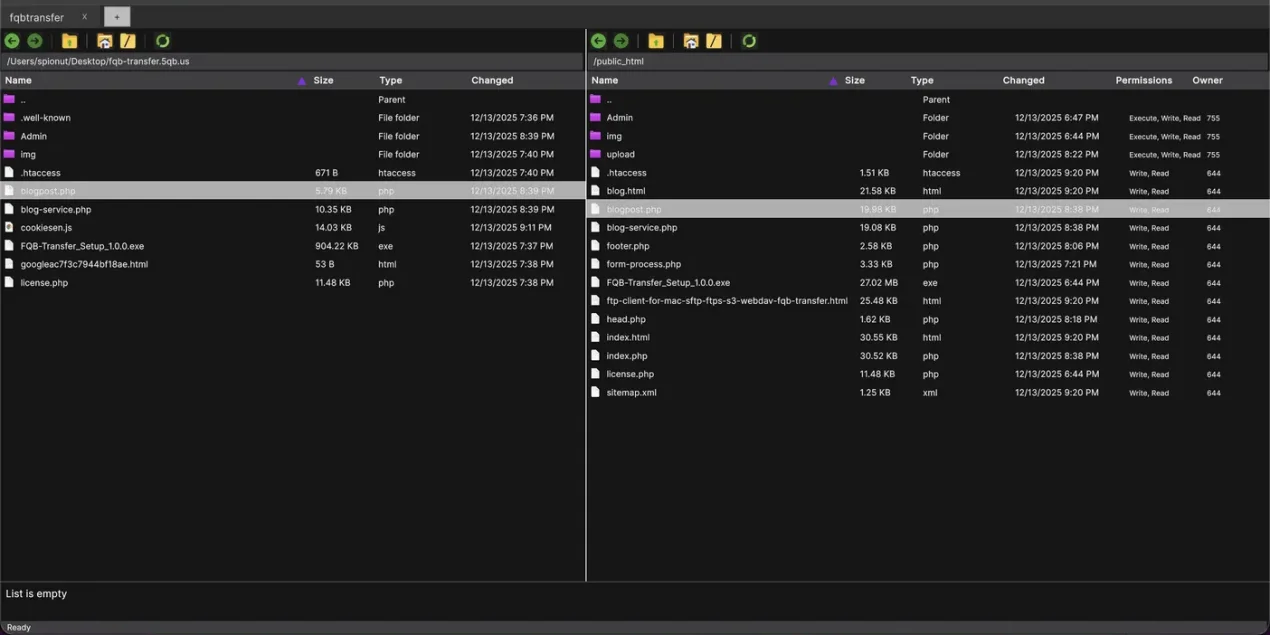
If you’ve used WinSCP on Windows, you already know the workflow: collect your connection details, create a saved session, then drag & drop files between local and remote panels. FQB-Transfer brings that same “get work done fast” approach to macOS—plus modern protocol support (FTP/FTPS/SFTP/SCP/S3/WebDAV), tabbed connections, a transfer queue, and live remote file editing. It’s available on the Mac App Store: https://apps.apple.com/in/app/ftp-client-fqb-transfer/id6751171843?mt=12
Quick Start Checklist (WinSCP-style, but on Mac)
Before you connect, make sure you have the same basics you’d use in WinSCP—then you can set up FQB-Transfer in minutes.
- Collect connection details: host, username, password (or SSH key), protocol, and port.
- Prefer secure protocols: use SFTP or FTPS instead of plain FTP when possible.
- Create and save a connection profile so future logins are one click.
- Use tabs for multiple servers (production/staging/clients) to avoid mistakes.
- Enable a fast workflow: drag & drop + transfer queue + live remote file editing.
Step-by-step: Connect your first server (SFTP, FTPS, or FTP)
1) Open FQB-Transfer and choose to create a new connection.
2) Select the protocol: use SFTP for most Linux servers (secure and usually simplest), or FTPS when your hosting provider requires FTP over TLS. Use plain FTP only if you have no alternative.
3) Enter your host and port (common defaults: SFTP 22, FTP 21; FTPS ports depend on provider and explicit vs implicit).
4) Add credentials: username + password, or for SFTP use an SSH key if your server supports it.
5) Connect and verify: on first SFTP connection, you may be asked to trust a host key—verify it with your provider/admin if you’re unsure.
6) Save the connection with a clear name (e.g., “Client A – Prod”, “Client A – Staging”) so you can reconnect instantly later.
Daily workflow: Tabs, transfer queue, drag & drop, and live remote editing
Once connected, use FQB-Transfer the same way experienced WinSCP users work—just adapted to macOS. Use tabs to keep multiple servers open at the same time (for example: production in one tab, staging in another). Move files with drag & drop between local and remote. For larger jobs, rely on the transfer queue to track progress, spot failures, and retry without losing your place. For quick fixes, use live remote file editing: open a remote file, edit it in your preferred editor, and let the app upload changes on save—ideal for config updates, CSS tweaks, or small hotfixes without manual download/upload cycles. If you frequently work across environments, keep a consistent routine: test on staging first, then apply the same change on production in the next tab.
If you know WinSCP, you already know the fundamentals: collect session details, save the connection, then transfer files confidently.
Use SFTP or FTPS for security; keep multiple servers organized in tabs to reduce “wrong server” accidents. For speed: drag & drop for transfers, transfer queue for control, and live remote editing for quick changes.